by
Need to submit a certificate, ID proof or signed form online but don’t have a scanner? You can scan documents with phone cameras today and get clear, cropped PDFs that look almost like a professional scanner output. It takes less than a minute and is completely free using apps you probably already have.
This guide shows how to scan documents with phone on Android and iPhone using Google Drive, Files by Google, Adobe Scan and the iPhone Notes and Files apps, plus tips to reduce file size, combine pages and keep scans safe.
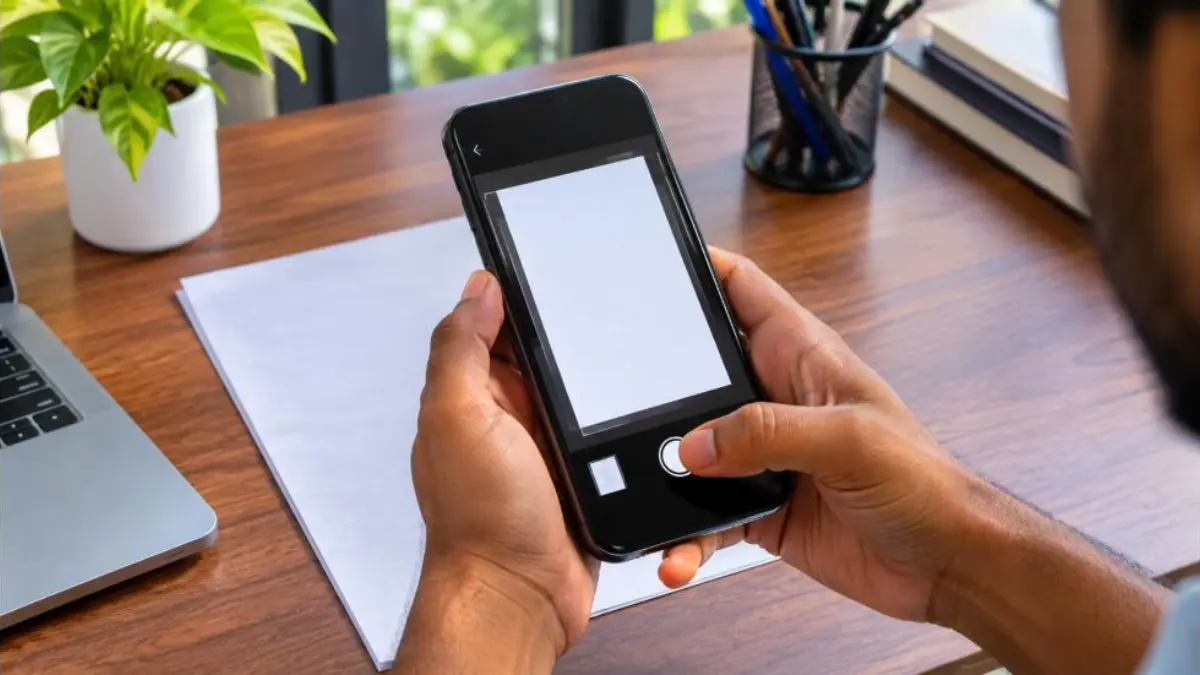
Scan Documents With Phone: Quick Overview
| Method | Platform | Cost | Best for |
|---|---|---|---|
| Google Drive scan | Android, iPhone | Free | Quick PDFs saved to Drive |
| Files by Google / Google camera scan | Android | Free | On-device scanning on many phones |
| Notes app / Files app | iPhone | Free | Built-in scanning without extra apps |
| Adobe Scan | Android, iPhone | Free (with paid extras) | Multi-page PDFs with OCR |
| Phone camera + PDF converter | Any | Free | When no scanner app is available |
Why Scan Documents With Phone Instead of Taking Photos?
- Automatic edge detection: Scanner apps detect and crop the page.
- Perspective correction: Tilted photos become straight rectangles.
- Clean background: Shadows and colour casts are reduced.
- PDF output: Most government and job portals accept PDFs.
- Multi-page files: Combine several pages into one document.
- Text recognition (OCR): Some apps make text searchable and copyable.
How to Scan Documents With Phone Using Google Drive
- Open the Google Drive app.
- Tap the + (New) button and choose Scan, or tap the camera icon if shown.
- Place the document on a flat, contrasting surface and point the camera.
- The app captures the page automatically or you tap the shutter.
- Adjust the crop, rotate if needed and choose a filter (colour, greyscale, black and white).
- Tap + to add more pages.
- Tap Save, name the file and choose a folder.
The PDF is saved in Google Drive. To keep it offline, open it and choose “Make available offline” or download to the phone.
How to Scan Documents With Phone on Android Without Extra Apps
Many Android phones now have a document scanning mode built into the camera or the Files app. Look for:
- A “Scan document” suggestion in the camera when you point at a page.
- A “Scan” option in Files by Google.
- Document mode in brand cameras such as Samsung, Xiaomi, Vivo or OnePlus.
Menu names vary by brand and Android version. If you cannot find it, use Google Drive, which works on almost every phone.
How to Scan Documents With Phone on iPhone
Using the Notes app
- Open Notes and create a new note.
- Tap the camera or attachment icon and choose Scan Documents.
- Hold the iPhone over the page; it captures automatically.
- Adjust corners if needed, add more pages and tap Save.
- Open the scan, tap Share and choose Save to Files or send it directly.
Using the Files app
- Open Files and go to a folder.
- Tap the three-dot menu and choose Scan Documents.
- Capture pages and tap Save; the PDF is stored in that folder.
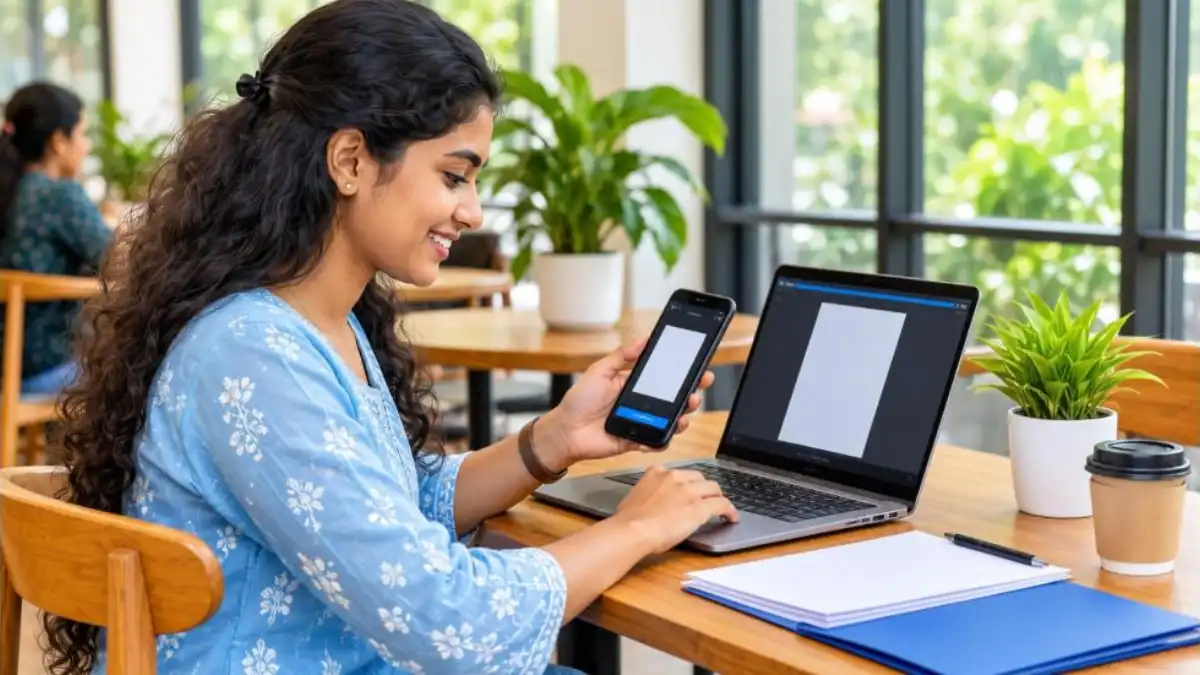
How to Scan Documents With Phone Using Adobe Scan
- Install Adobe Scan from the official app store and sign in.
- Choose the mode: Document, ID card, Business card, Whiteboard or Book.
- Point at the page; the app captures automatically.
- Review pages, crop, rotate, reorder or clean marks.
- Tap Save PDF. Text recognition makes the PDF searchable.
The ID card mode is handy for Aadhaar, PAN or driving licence because it places front and back on one page.
Tips for Perfect Phone Scans
- Good light: Use daylight near a window. Avoid direct harsh sun and your own shadow.
- Contrast: Place white paper on a dark surface so edges are detected easily.
- Flat paper: Smooth out folds; use a book to hold corners.
- Steady hands: Rest elbows on the table or use the auto-capture feature.
- Clean lens: Wipe the camera lens before scanning.
- Right filter: Use black-and-white for text documents, colour for certificates with seals and photos.
How to Reduce Scanned PDF Size
Many portals limit uploads to sizes like 100 KB, 200 KB or 1 MB. To meet limits:
- Use greyscale or black-and-white filter instead of colour.
- Choose lower quality or “small” size in the app’s settings before saving.
- Scan only the pages required.
- Use a trusted compression tool. Read our guide to PDF24 tools for compression and merging.
How to Combine, Split and Reorder Pages
Most scanner apps let you add pages and reorder them before saving. To merge separate PDFs later, use a PDF tool on your phone or a website you trust. Avoid uploading sensitive documents to unknown websites.
Where to Save Scanned Documents Safely
- DigiLocker: For important certificates. See our guide on how to upload certificates in DigiLocker.
- Google Drive or iCloud: With two-step verification enabled.
- Phone storage: In a secured folder or app lock.
Do not leave scans of Aadhaar, PAN, passport or bank documents in shared folders or chat groups.
Common Uses
| Need | Recommended settings |
|---|---|
| Job application certificates | Colour or greyscale PDF, under portal size limit |
| Aadhaar / PAN for KYC | ID card mode, front and back on one page |
| Signed forms | Black-and-white, high clarity |
| Receipts and bills | Greyscale, small file size |
| Notes and whiteboards | Whiteboard mode, colour |
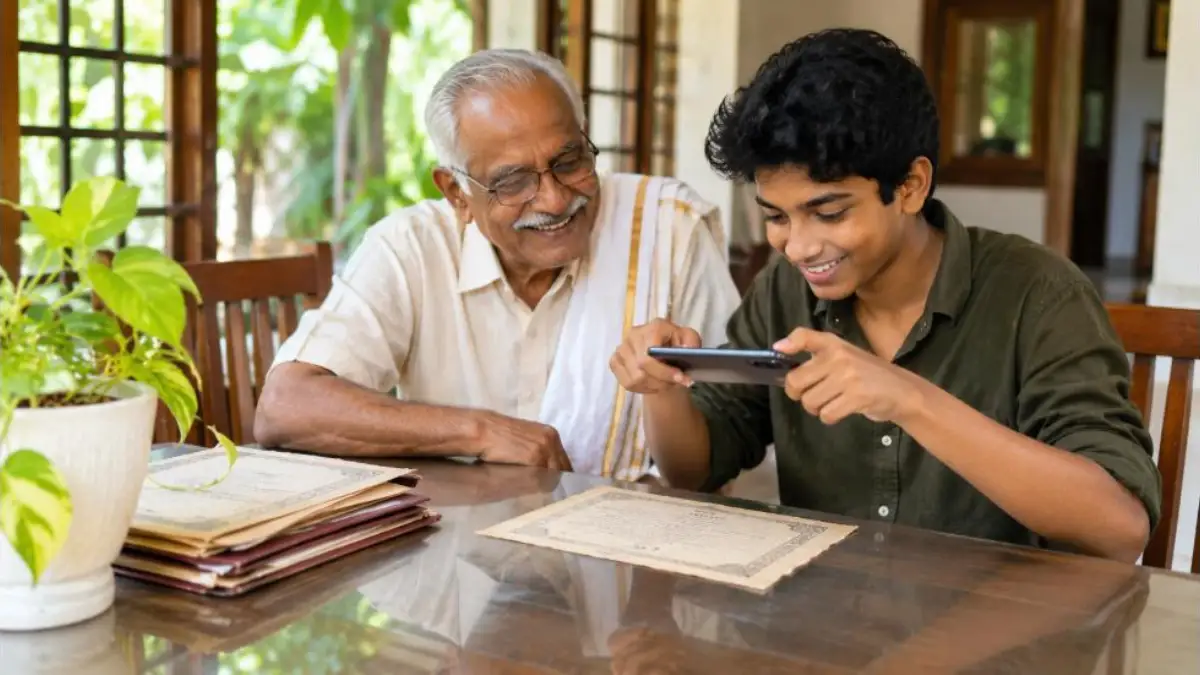
Scan Documents With Phone: Step-by-Step for Beginners
If you have never used a scanner app, follow this simple routine every time you scan documents with phone:
- Clear a table and place a dark cloth or file cover on it.
- Put the document flat in the centre.
- Turn on room lights or move near a window; switch off flash if it causes glare.
- Open your scanner app and hold the phone parallel to the paper.
- Wait for the blue or green outline to appear around the page, then capture.
- Check the preview: all corners visible, text sharp, no shadows.
- Apply a suitable filter and save as PDF with a clear name like “SSLC-Certificate-Anu.pdf”.
After a few tries, you will be able to scan documents with phone in under 30 seconds per page.
Scan Documents With Phone for Government Applications
Online applications for scholarships, PSC, passport, ration card, pension and job portals often ask for scanned documents. Common requirements include:
| Requirement | How to meet it |
|---|---|
| PDF format | Save as PDF in the scanner app |
| Maximum file size (e.g., 100 KB–2 MB) | Use greyscale and lower quality settings; compress if needed |
| JPG format for photo/signature | Use camera, crop and resize; some apps export JPG |
| Specific dimensions for photo | Use a resizer tool or the portal’s built-in cropper |
| Readable seals and signatures | Use colour or high-quality greyscale |
Always read the instructions on the portal first, then scan documents with phone using the matching settings. This avoids repeated uploads and rejections.
Scanning Signatures
Many forms require a scanned signature. Sign with a dark blue or black pen on plain white paper, scan in black-and-white mode, crop tightly around the signature and save as JPG or PDF as required. Keep the original signature sheet for future use.
Scanning Photos and Old Documents
For old family photos, land documents and fragile certificates, use colour mode and good daylight. Avoid flash, which creates glare on glossy prints. Scan at the highest quality, then create a smaller copy if you need to upload it. Store originals in a dry folder away from moisture.
Privacy and Security Tips
- Use trusted apps from official app stores only.
- Check app permissions; a scanner does not need access to contacts or SMS.
- Delete scans you no longer need from chat apps and downloads.
- Add a watermark like “For KYC with [Bank] only” when sharing ID copies.
- Lock sensitive folders with your phone’s secure folder or app lock.
Official Help Pages
For step-by-step help from the app makers, see the Google Drive scanning help page and Apple’s guide to scanning documents on iPhone. Menu names change with updates, so these pages are useful when your app looks different from the steps above.
Comparison: Which App Should You Use?
| App | Strengths | Limitations |
|---|---|---|
| Google Drive | Simple, auto-upload to cloud, works on most phones | Needs Google account and internet to sync |
| Built-in Android scanner | No extra install, fast | Varies by brand; may lack multi-page options |
| iPhone Notes / Files | Excellent edge detection, no extra app | Only on iPhone/iPad |
| Adobe Scan | OCR, ID card mode, good cleanup | Some features need a subscription |
For most people, Google Drive on Android and Notes on iPhone are enough to scan documents with phone quickly and clearly.
Troubleshooting
- Edges not detected: Increase contrast by using a darker background.
- Text looks faded: Switch to black-and-white or increase brightness in the editor.
- Pages in wrong order: Reorder in the preview before saving.
- PDF too large: Reduce quality, use greyscale or compress.
- App crashes: Update the app, clear cache, or restart the phone.
Digitise Your Whole Family’s Documents
Spend one weekend to scan documents with phone for every family member: birth certificates, school certificates, Aadhaar, PAN, ration card, property papers, insurance policies and bank passbooks. Name files clearly and store them in DigiLocker and a secure cloud folder. During emergencies, travel or applications, you will find everything in seconds.
Teach Elders to Scan
Elderly parents often need to send documents for pension, medical or bank work. Install one scanner app, create a home-screen shortcut, and practise with them two or three times. A printed one-page instruction sheet near their phone helps a lot.
Scan Documents With Phone vs Shop Scanning
| Point | Phone scanning | Shop / flatbed scanner |
|---|---|---|
| Cost | Free | Per-page charges |
| Time | Seconds, at home | Travel and waiting |
| Privacy | Documents stay with you | Copies may remain on shop computers |
| Quality | Very good for most uses | Best for archival or very large documents |
For everyday needs, it is easier and safer to scan documents with phone. Visit a professional scanner only for very old, large or legal documents that need maximum detail.
Scan Documents With Phone for Students
Students can scan documents with phone to submit assignments, mark lists, admit cards and scholarship forms. Scan handwritten notes in black-and-white mode and combine them into one PDF per subject. Teachers often accept clear phone scans for online submissions.
Scan Documents With Phone for Small Businesses
Shop owners and freelancers can scan documents with phone to digitise bills, GST invoices, purchase receipts and delivery challans. Create folders by month, and back them up to the cloud. This makes tax filing and audits easier and protects records from loss or damage.
Keep Your Scans Organised
- Use a consistent naming style: Name-Document-Year.pdf.
- Create folders: Identity, Education, Property, Health, Bank, Bills.
- Delete duplicates and blurry versions.
- Review once a year and update expired documents.
A tidy system means that once you scan documents with phone, you can find any file within seconds whenever a form or office asks for it.
Advanced Tips for Better Results
Use a simple phone stand
If you scan many pages, build a simple stand using a stack of books or a small tripod with a phone holder. This keeps the phone steady at the same height, giving consistent, sharp scans and saving time.
Turn on auto-capture
Most apps can capture automatically when the page is steady and in focus. This reduces blur from tapping the shutter button.
Use OCR for searchable files
When a scanner app supports text recognition, your PDF becomes searchable. You can later search for a word like “invoice” or a person’s name inside hundreds of scanned files.
Export to email or WhatsApp correctly
When sharing, choose “Send as document” or attach the PDF file instead of sending it as an image. This preserves quality and keeps the file in PDF format.
Back up regularly
Phones can be lost or damaged. Set automatic backup for your scans folder to Google Drive, iCloud or another trusted cloud service.
Accessibility Features
People with low vision can use scanner apps with text recognition along with the phone’s screen reader to have printed documents read aloud. Android’s built-in accessibility tools and iPhone’s VoiceOver can read recognised text, making printed letters and bills easier to understand independently.
Real Example
Riya, a nursing graduate from Thrissur, had to upload 14 certificates for a hospital job application with a 500 KB limit per file. Instead of visiting a shop, she used Google Drive on her phone. She scanned each certificate in colour, saved them at medium quality, and checked the size before uploading. Two files were slightly large, so she rescanned them in greyscale. She completed the whole application from home in under an hour, without spending any money.
Quick Checklist Before You Scan
- Good light and a dark background ready.
- Camera lens clean.
- Document flat with all corners visible.
- Correct mode: document, ID card or photo.
- Portal requirements noted: format and size.
- File name decided.
- Secure place to save planned.
Keep this list handy and every time you scan documents with phone, you will get clean results on the first try. Share this guide with friends and family who still travel to shops for simple scanning jobs; it could save them both time and money.
The Future of Phone Scanning
Phone cameras and on-device AI keep improving. Newer phones can detect documents automatically in the regular camera, remove fingers holding the page, straighten curved book pages and even translate text instantly. As these features spread, it will become even easier to go paperless at home and work. Learning the basics now means you can take advantage of every new feature as it arrives, and keep your family’s important records safe, searchable and always within reach on your phone.
Start today: pick one important document, scan documents with phone using the steps above, and save it securely. Once you see how easy it is, you will never queue at a scanning shop again for routine needs.
It is a small digital skill that saves money, time and trips, and it helps your whole family stay organised for every application, claim and renewal in the years ahead.
Frequently Asked Questions
Is it free to scan documents with phone?
Yes. Google Drive, iPhone Notes and Files, built-in Android scanners and the free version of Adobe Scan cost nothing.
Are phone scans accepted by government portals?
Generally yes, if the scan is clear, readable and within the size and format limits stated on the portal.
How do I scan both sides of an ID card on one page?
Use ID card mode in apps like Adobe Scan, or scan both sides and merge them into one page using a PDF tool.
Why is my scan blurry?
Usually due to poor light, camera shake or a dirty lens. Clean the lens, use daylight and hold the phone steady.
Can I edit text in a scanned PDF?
Apps with OCR let you copy text. Editing the original layout needs a PDF editor.
Conclusion
You no longer need a scanner or a shop visit to digitise documents. Learn to scan documents with phone using Google Drive, your phone’s built-in scanner, iPhone Notes or Adobe Scan, and follow simple tips for light, contrast and file size. Store scans securely and you will always have your important papers ready to upload.