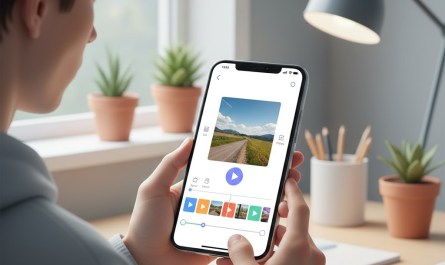
Mobile photo editing has become an everyday need. From social media posts and online profiles to small business promotions and school projects, people now rely on their smartphones to edit images quickly and effectively.
PhotoLayers App 2026: Background Removal & Photo Combining Guide. Instead of offering dozens of complex tools, it focuses on the most commonly needed tasks and presents them in a simple, beginner-friendly way. This is why many users prefer PhotoLayers for background editing and photo composition in 2026.
What Is PhotoLayers App?
PhotoLayers is a lightweight photo editing tool that allows users to:
- Remove or erase image backgrounds
- Cut out objects from photos
- Combine multiple photos using layers
- Replace backgrounds easily
The app is available on both major mobile platforms:
- Android via the Google Play Store
- iOS via the Apple App Store
PhotoLayers is designed for users who want effective editing without complex desktop software like Photoshop. It works well for beginners while still offering enough control for more detailed edits.
Key Features of PhotoLayers
Intelligent Background Eraser
The app provides an eraser tool that helps remove unwanted background areas. Users can manually erase parts of an image with good control, making it suitable even for hair and complex edges.
Example: Removing a busy background behind a person for a clean profile photo.
Multiple Layer Support
PhotoLayers allows you to work with layers, similar to desktop editors. Each added image becomes a new layer that can be resized, moved, or adjusted independently.
Example: Placing a person in front of a new background image.
Photo Combining / Multi-Photo Merging
You can merge two or more photos into a single image by stacking layers.
Example: Combining a portrait with a scenic background.
Crop, Move, and Resize Objects
Cut-out objects can be freely resized, rotated, and positioned anywhere on the canvas.
Blend Modes & Transparency Control
The app lets you adjust transparency to blend images more naturally.
Example: Softly blending a logo onto a product photo.
Background Replacement Options
You can replace removed backgrounds with:
- Solid colors
- Textures
- Custom images from your gallery
Easy Sharing
Finished images can be saved to your device or shared directly to social media apps.
Who Should Use PhotoLayers App?
PhotoLayers is ideal for:
- Social media creators creating custom posts
- Bloggers & influencers designing visuals
- Small business owners editing product images
- Travel photographers combining subjects with landscapes
- Students learning the basics of photo editing
It is especially useful for users who want practical results without a steep learning curve.
Step-by-Step: How to Install PhotoLayers
Android Installation
- Open the Google Play Store
- Search for PhotoLayers
- Tap Install
- Open the app after installation
iOS Installation
- Open the Apple App Store
- Search for PhotoLayers
- Tap Get
- Launch the app once installed
Always download the app only from official app stores for safety and updates.
Step-by-Step: How to Remove Background
- Open PhotoLayers
- Select a base image from your gallery
- Choose the Background Eraser tool
- Zoom in and erase unwanted background areas
- Use smaller brush size for detailed edges
- Save or continue editing
Tip: Zooming in improves precision, especially around hair and object borders.
Step-by-Step: How to Combine Multiple Photos
- Open PhotoLayers
- Add your first image as the base layer
- Tap Add Layer
- Select the second image
- Resize and position it on the canvas
- Adjust transparency if needed
- Finalize the composition
Real-world use case: Combining a portrait photo with a city skyline or nature background.
How to Add Custom Backgrounds
After removing the original background:
- Choose Add Background
- Select:
- Solid color, or
- Image from gallery
- Adjust brightness, contrast, or saturation
- Fine-tune edges for a natural blend
Blending tip: Match lighting and color tone between foreground and background.
Tips for Better Editing Results
- Use layers strategically (one object per layer)
- Match light direction between images
- Avoid sharp, unnatural edges
- Use soft eraser for hair and complex shapes
- Adjust transparency slightly for realism
Small adjustments make a big difference in final quality.
Common Issues & Solutions
Fuzzy background edges
→ Zoom in and refine with a smaller eraser
Object not aligning properly
→ Use grid or visual reference points
App lag or crash
→ Close other apps and restart PhotoLayers
Low export quality
→ Check export resolution before saving
Safety & Privacy Tips
- Download only from official app stores
- Avoid granting unnecessary permissions
- Do not install unverified add-ons
- Keep the app updated
PhotoLayers does not require access to sensitive personal data.
Frequently Asked Questions (FAQs)
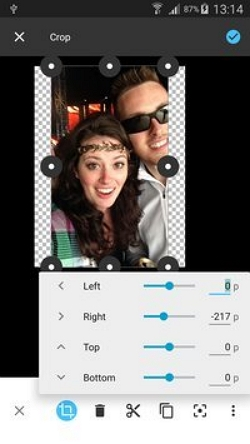
Can I save transparent PNG files?
Yes, transparent backgrounds are supported.
Does the app work offline?
Yes, most editing features work without internet.
Can I combine more than five photos?
Yes, multiple layers can be added, depending on device performance.
Is PhotoLayers free?
Basic features are free; some versions may offer optional paid tools.
Conclusion
PhotoLayers is a practical and easy-to-use photo editing app for background removal and photo combining on both Android and iOS. Its layer-based approach, combined with simple tools, makes it suitable for beginners while still offering flexibility for more creative edits.
For everyday creators who want clean backgrounds, combined images, and better visual presentation without complex software, PhotoLayers remains a reliable choice in 2026.