
Students, researchers, writers, and professionals today deal with large volumes of information—PDFs, reports, articles, lecture notes, and references. Reading everything carefully, extracting key points, and keeping notes organised can be time-consuming and mentally exhausting.
To address this challenge, AI-based tools are increasingly being used to support learning and research, not by replacing human thinking, but by helping users understand, summarise, and organise information more efficiently. One such tool is Google NotebookLM, which focuses specifically on working with the user’s own documents rather than pulling answers from across the internet.
Google NotebookLM (Official Website)
Google NotebookLM App (Android)
Google NotebookLM App (iOS)
What Is Google NotebookLM?
Google NotebookLM is an AI-powered research and note-taking tool developed by Google.
In simple terms:
- It acts like a smart notebook
- Users upload their own documents and notes
- The AI helps explain, summarise, and answer questions only from those uploaded sources
Unlike general chatbots, NotebookLM is designed to support learning, analysis, and research, not casual conversation.
How NotebookLM Works
NotebookLM follows a clear and controlled workflow:
- Users upload sources
These can be documents such as PDFs, text files, or Google Docs. - NotebookLM reads only those sources
The AI does not browse the internet or use unrelated data. - Users ask questions or request summaries
The AI generates answers, explanations, and insights strictly based on the uploaded material.
This approach keeps responses grounded in the user’s own content, which is especially useful for academic or professional work.
Key Features of Google NotebookLM
AI-Powered Summaries
NotebookLM can condense long documents into short, readable summaries, helping users grasp key ideas quickly.
Source-Grounded Answers
All responses are based on uploaded documents, reducing the risk of unrelated or invented information.
Topic Breakdown
Complex subjects are automatically divided into subtopics, making them easier to study or review.
Question-and-Answer from Notes
Users can ask questions in natural language and receive answers drawn directly from their sources.
Quotes and References
NotebookLM can highlight where information comes from, making it easier to trace answers back to the original text.
Notebook-Style Organisation
Each project is organised into notebooks, helping users keep different subjects or research areas separate.
What Makes NotebookLM Different from Other AI Tools
Compared to general AI chat tools, NotebookLM:
- Does not rely on broad internet data
- Responds only using user-provided content
- Is designed for accuracy over creativity
Compared to Google Docs:
- It explains and analyses content instead of just storing it
Compared to traditional note apps:
- It actively helps users understand material rather than just saving notes
This makes NotebookLM especially suitable for research-focused tasks.
Supported File Types and Content Sources
NotebookLM typically supports:
- PDF documents
- Google Docs
- Plain text notes
Best practices include:
- Uploading clear, well-structured documents
- Avoiding scanned images with unreadable text
- Keeping source files relevant and focused
There may be size or number limits per notebook, depending on current availability.
How to Use NotebookLM – Step-by-Step Guide
Step 1: Open NotebookLM and Sign In
Google NotebookLM (Official Website)
Google NotebookLM App (Android)
Google NotebookLM App (iOS)
- Open your web browser (Chrome works best)
- Visit the official NotebookLM website
- Sign in using your Google account
NotebookLM is a web-based tool developed by Google, so a Google account is required. No separate registration is needed.
Step 2: Create a New Notebook
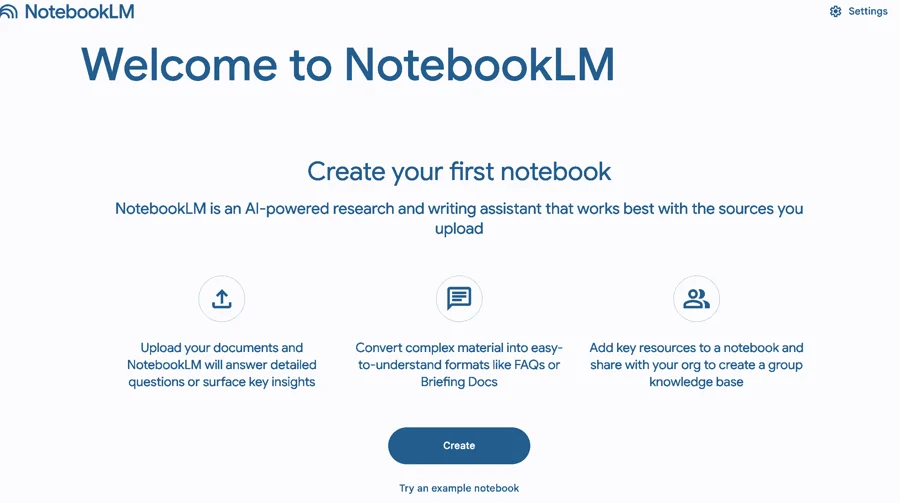
After signing in, you will see an option to create a new notebook.
- Click “Create New Notebook”
- Give your notebook a clear name
- Example: Biology Exam Notes, Market Research Report, or Project References
Each notebook acts as a separate workspace, so it is best to create one notebook per subject or project.
Step 3: Add Your Source Materials
NotebookLM works only with the sources you provide.
You can add:
- PDF documents
- Google Docs
- Text-based notes or files
Steps to add sources:
- Click “Add Source”
- Upload files or select Google Docs
- Wait for the files to finish processing
💡 Tip:
Upload clean, readable documents. Clear text gives better summaries and answers.
Step 4: Let NotebookLM Read and Index Your Sources
Once uploaded:
- NotebookLM scans the documents
- It identifies key topics and structure
- No external internet data is used
This step happens automatically. You do not need to configure anything.
Step 5: Ask Questions in Natural Language
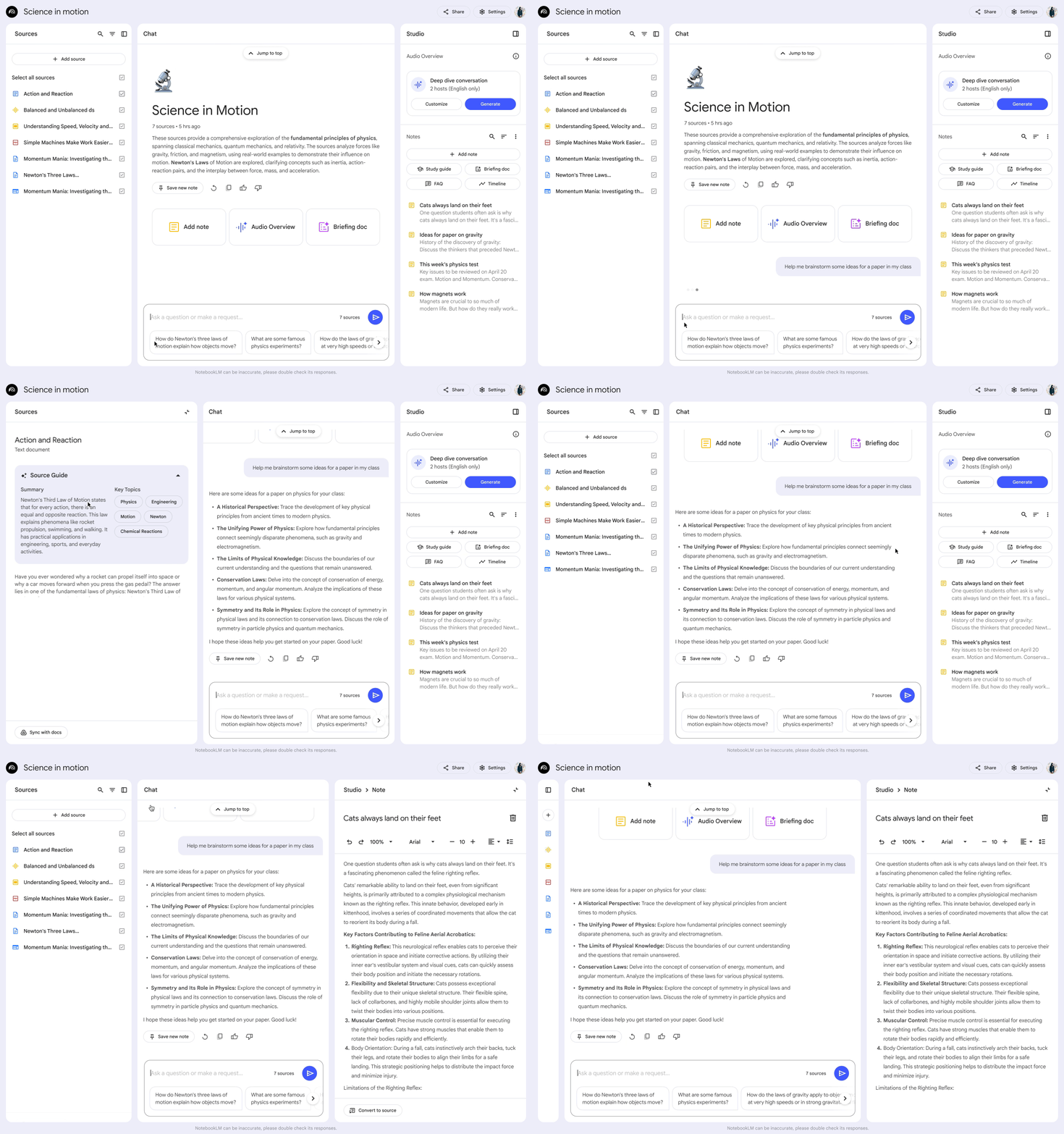
You can now interact with your notebook.
Examples of questions:
- “Summarise this document in simple terms”
- “What are the key arguments in this paper?”
- “Explain this concept as if I am a beginner”
- “List important points for exam revision”
NotebookLM answers only using your uploaded sources, which keeps responses focused and relevant.
Step 6: Review Source-Based Answers Carefully
When NotebookLM provides an answer:
- Read it carefully
- Check referenced sections or quotes
- Compare with the original document if needed
This step is important because NotebookLM assists understanding, but users should always apply their own judgment.
Step 7: Save Useful Responses as Notes
If an explanation or summary is helpful:
- Save it directly into the notebook
- Add your own comments if required
This helps you build structured notes automatically while studying or researching.
Step 8: Break Down Complex Topics
For large or difficult subjects, ask:
- “Break this topic into smaller sections”
- “Explain each chapter briefly”
- “Create a study outline from these notes”
NotebookLM can reorganise information into clear sections, making revision easier.
Step 9: Use Multiple Sources Together
If you upload multiple documents:
- NotebookLM can combine insights
- It can compare points across sources
- It helps identify repeated themes or differences
This is especially useful for:
- Literature reviews
- Research analysis
- Comparative studies
Step 10: Organise Your Notebook Properly
As content grows:
- Keep related notes grouped together
- Remove unnecessary saved answers
- Rename notes clearly
A well-organised notebook improves long-term usability.
Step 11: Update or Add New Sources Anytime
You can:
- Upload new documents later
- Replace outdated files
- Expand the notebook as your project grows
NotebookLM automatically adjusts its understanding when new sources are added.
Step 12: Use NotebookLM as a Learning Assistant, Not a Shortcut
Best practice:
- Use it to understand, not to copy
- Cross-check important facts
- Apply your own reasoning and conclusions
NotebookLM is most effective when used as a thinking aid, not a replacement for study or analysis.
Summary
Using NotebookLM effectively involves:
- Creating focused notebooks
- Uploading quality source material
- Asking clear, purposeful questions
- Reviewing and organising AI-generated insights
When used step by step, NotebookLM becomes a powerful tool for learning, research, and information organisation, especially for users who want clarity without relying on uncontrolled internet data.
Use Cases of Google NotebookLM
NotebookLM can be useful in many real-world situations:
- Students revising textbooks or exam material
- Researchers analysing academic papers
- Writers organising background research
- Professionals reviewing reports or policy documents
- Educators preparing lesson plans and teaching notes
In each case, the tool supports understanding rather than replacing judgment.
Accuracy, Privacy, and Data Handling
NotebookLM:
- Generates answers only from uploaded sources
- Does not browse external websites
- Reduces the chance of incorrect or fabricated answers
Regarding privacy:
- Uploaded data is handled under Google’s data policies
- Users should avoid uploading sensitive or confidential documents unless permitted
- The tool is designed for controlled, user-directed analysis
Advantages of Using NotebookLM
Key benefits include:
- Faster understanding of complex material
- Better organisation of research notes
- Reduced manual summarisation effort
- Clear links between answers and sources
These advantages make it useful for long-term projects.
Limitations of NotebookLM
Despite its strengths, NotebookLM has limits:
- Quality depends on the quality of uploaded sources
- It cannot replace critical thinking or domain expertise
- New users may need time to learn effective prompting
- Availability and features may vary by region
It should be seen as a support tool, not a final authority.
NotebookLM Web vs App Experience
Currently:
- NotebookLM is mainly web-based
- Mobile or standalone app support may be limited or evolving
For deep research and reading, desktop or laptop usage is generally more effective.
Tips to Get the Best Results from NotebookLM
- Upload well-organised and relevant documents
- Ask specific, focused questions
- Use multiple sources for balanced context
- Keep notebooks separated by subject or project
Clear inputs lead to clearer outputs.
Frequently Asked Questions (FAQs)
Is NotebookLM free?
Availability and pricing may vary; users should check current access details.
Does it use internet data?
No. It relies only on user-provided sources.
Is it suitable for students?
Yes, especially for studying and revision.
Can it replace traditional note apps?
It complements them rather than fully replacing them.
Conclusion
Google NotebookLM represents a shift in how AI can support learning and research—by working with user-controlled sources instead of open internet data. It helps users understand, organise, and explore information more efficiently while keeping responses grounded and traceable.
When used thoughtfully, NotebookLM can become a valuable companion for students, researchers, writers, and professionals who want clarity, structure, and efficiency in their work—without losing control over their content or thinking process.


