
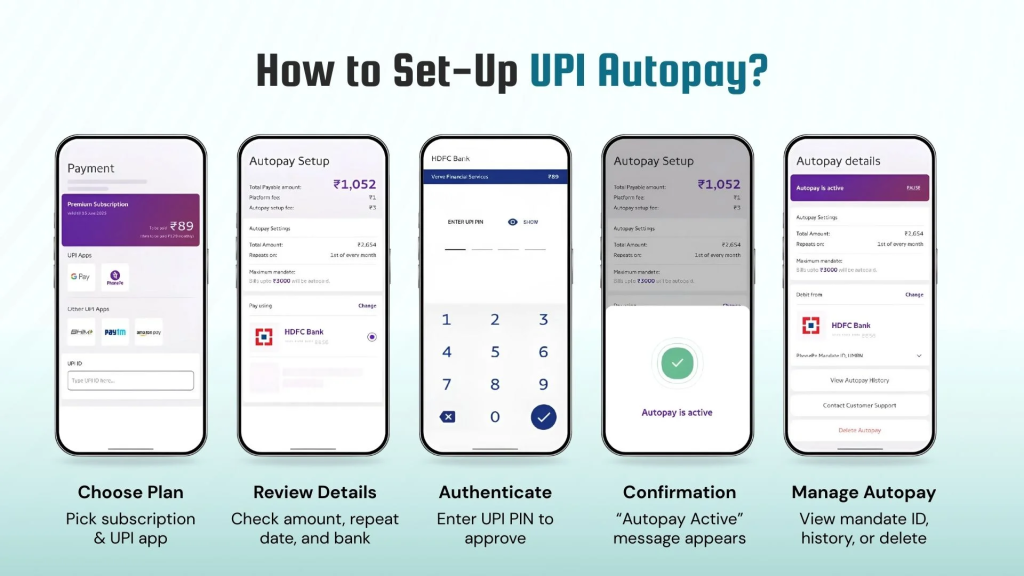
UPI has made digital payments simple, but UPI AutoPay adds another layer by allowing automatic recurring payments. Many users approve mandates for subscriptions or bills and then forget about them. Over time, this can lead to unwanted deductions from the bank account.
Regularly checking UPI AutoPay mandates helps you:
- Stay aware of active subscriptions
- Avoid unnecessary auto-debits
- Maintain better control over your finances
This 2026 guide explains how to check UPI AutoPay mandates online, step by step, using popular UPI apps and bank apps.
What Is UPI AutoPay?
UPI AutoPay is a recurring payment facility introduced by NPCI. It allows users to approve a mandate once and let future payments happen automatically.
Key Points
- Works for monthly, quarterly, or yearly payments
- Amount and frequency are fixed at the time of approval
- Debit happens automatically without manual approval each time
Common Uses
- OTT subscriptions
- Mutual fund SIPs
- Insurance premiums
- Loan EMIs
- Utility and service subscriptions
Why You Should Check UPI AutoPay Mandates
Checking mandates regularly is important because it helps you:
- Identify unused or forgotten subscriptions
- Prevent unexpected auto-debits
- Track long-term financial commitments
- Ensure mandates were approved by you and not mistakenly
UPI AutoPay gives convenience, but awareness gives control.
Details You Need Before Checking
Before checking your AutoPay mandates, make sure you have:
- An active UPI app on your phone
- A bank account linked to UPI
- Mobile number linked with your bank
- Working internet connection
No additional documents are required.
How to Check UPI AutoPay Mandates Using Any UPI App (General Method)

Most UPI apps follow a similar structure.
General Steps
- Open your UPI app
- Go to AutoPay / Mandates / Subscriptions section
- View the list of mandates
Mandate Details Shown
- Merchant or service name
- Debit amount
- Frequency (monthly, quarterly, etc.)
- Next debit date
- Mandate status (Active, Paused, Cancelled, Expired)
App-Wise Step-by-Step Guide
A. Check UPI AutoPay in Google Pay
- Open Google Pay
- Tap your profile photo
- Select Autopay
- View:
- Active mandates
- Completed or cancelled mandates
- Upcoming debit dates
Each mandate opens with full details when tapped.
B. Check UPI AutoPay in PhonePe
- Open PhonePe
- Go to My Bills / Subscriptions
- Tap Autopay Mandates
- View:
- Active mandates
- Inactive or expired mandates
PhonePe clearly separates active and inactive mandates for easy review.
C. Check UPI AutoPay in Paytm
- Open Paytm
- Go to UPI & Payments
- Select Automatic Payments / Mandates
- Check mandate status, amount, and next debit
Paytm also shows mandate-linked transaction history.
D. Other UPI Apps (BHIM, Amazon Pay, etc.)
For other UPI apps:
- Open the app
- Go to UPI Settings / AutoPay / Mandates
- Look for Subscriptions or Recurring Payments
The naming may differ, but mandate details are always available inside UPI settings.
How to Check UPI AutoPay Through Bank App
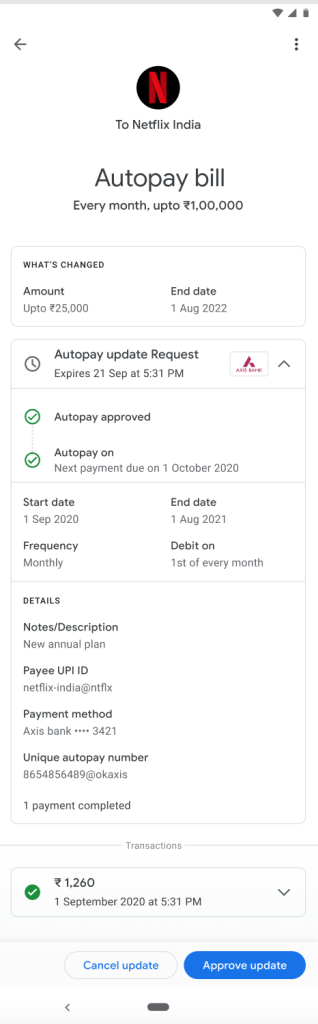
Many banks also show AutoPay mandates inside their own apps.
What You Can See
- Active UPI mandates linked to your account
- Debit history related to AutoPay
- Mandate amount and frequency
This is useful if:
- You use multiple UPI apps
- You want a bank-level view of auto-debits
How to Identify Active, Paused & Cancelled Mandates
Active
- Mandate is valid
- Auto-debit will happen on scheduled date
Paused
- Temporarily stopped
- Can be resumed later (if supported by app)
Cancelled
- Permanently stopped
- No future debits
Expired
- Mandate validity period is over
- No automatic renewal unless re-approved
How to Cancel or Pause a UPI AutoPay Mandate
When You Can Cancel
- Any time before the next debit date
General Steps
- Open UPI app
- Go to Autopay / Mandates
- Select the mandate
- Tap Cancel / Pause
- Enter UPI PIN to confirm
After cancellation:
- No further auto-debits occur
- Confirmation message is shown
Common Problems While Checking AutoPay & Solutions
Mandate not visible
- Check all UPI apps linked to your bank
- Try bank app view
Old mandates missing
- Some apps hide expired mandates
- Check transaction history
Multiple UPI apps confusion
- Mandate is bank-linked, not app-specific
- Use the app where mandate was created
Bank sync delay
- Wait 24–48 hours
- Refresh or update the app
Safety Tips for UPI AutoPay Users
- Never approve mandates from unknown merchants
- Review mandates at least once a month
- Enable app notifications for AutoPay debits
- Check bank statements regularly
- Cancel unused subscriptions immediately
Frequently Asked Questions (FAQs)
Can I see AutoPay mandates without internet?
No. Internet is required to fetch mandate details.
Is AutoPay visible in all UPI apps?
Usually visible only in the app where it was created, but banks may show it too.
What if I changed my phone?
Install the same UPI app and log in using your number to view mandates.
Is UPI AutoPay safe?
Yes. It is regulated by NPCI and requires UPI PIN for approval and cancellation.
Conclusion
UPI AutoPay is convenient, but regular checking is essential to avoid unwanted deductions. In 2026, all major UPI apps make it easy to view active, paused, and cancelled mandates in just a few taps.
By checking AutoPay mandates regularly:
- You stay financially aware
- You avoid unnecessary expenses
- You maintain full control over recurring payments
A few minutes of review can save you months of confusion later.